Table of Contents
Introduction
Firestick codes unlock a world of hidden features, remote compatibility, and advanced settings that most users never discover. Whether you’re trying to pair a universal remote, access developer options, sideload apps, or troubleshoot your device, knowing the right codes and sequences can dramatically enhance your Amazon Firestick experience.
Amazon’s Fire TV Stick is one of the most popular streaming devices in the world — but its default interface only scratches the surface of what it can do. Beneath the standard menus lies a range of powerful settings, hidden shortcuts, and input codes that give you far greater control over your device.
This complete guide to Firestick codes covers everything from universal remote pairing codes and developer options to IPTV setup codes and troubleshooting sequences — all updated for 2026.
What Are Firestick Codes?
Firestick codes is a broad term that covers several different types of codes and sequences used with Amazon Fire TV Stick devices:
- Remote pairing codes – Numeric codes used to sync a universal or third-party remote with your Firestick or compatible TV
- Developer/hidden menu codes – Navigation sequences that unlock advanced settings menus not visible in the standard interface
- TV input/brand codes – Codes that let your Firestick remote control your television’s power, volume, and input switching
- App access codes – Sequences used to access hidden menus within specific streaming apps
- Sideload/install codes – URL or app codes used to install third-party apps via the Downloader app
Understanding which type of code you need is the first step to getting the most from your Firestick. Each category serves a different purpose and is accessed in a different way.
Firestick Remote Codes for Universal Remotes
One of the most searched categories of Firestick codes is remote pairing — specifically, codes that allow a universal remote to control your Firestick.
Why Use a Universal Remote with Firestick?
Many users prefer to consolidate all their devices onto a single remote. A universal remote programmed with the correct Firestick codes can control power, volume, navigation, and playback — eliminating the need for multiple remotes.
How to Program a Universal Remote for Firestick
- Put your universal remote into programming mode (usually by holding the Setup or Code Search button until the indicator light stays on)
- Point the remote at your Firestick device
- Enter the appropriate code for your remote brand (see below)
- Test the remote by pressing navigation buttons
Common Firestick Universal Remote Codes by Brand
RCA Universal Remotes:
- 2434, 2446, 2456, 2490, 2498
GE Universal Remotes:
- 4523, 4557, 4622, 4673
Philips Universal Remotes:
- 2082, 2086, 2125, 2183
One For All Universal Remotes:
- 4523, 4557, 5071, 5111
Chunghop Universal Remotes:
- 0178, 0189, 0235, 0256
Jumbo Universal Remotes:
- 0556, 0672, 0712, 0845
Note: If your first code doesn’t work, try each code in sequence. Universal remote code databases vary by model year and firmware version, so cycling through the full list for your brand is recommended.
Auto-Search Method
If none of the listed codes work, most universal remotes support an auto-search function:
- Enter programming mode
- Press the Channel Up button repeatedly — each press sends a test signal
- When your Firestick responds, press Enter or OK to lock the code
- Test all functions and save
Firestick Secret Menu & Developer Codes
Amazon’s Fire TV OS includes a hidden developer options menu that unlocks powerful features — most notably the ability to install apps from outside the Amazon Appstore (sideloading). Accessing this menu requires a specific button sequence rather than a numeric code.
How to Access Firestick Developer Options
- From the Firestick home screen, go to Settings
- Select My Fire TV (or Device on older models)
- Scroll to About
- Click on Fire TV Stick (the device name) seven times in rapid succession
- A message will appear: “No need, you are already a developer” or “You are now a developer”
- Go back to My Fire TV — Developer Options will now be visible
Key Settings in Developer Options
- ADB Debugging – Enable this to connect your Firestick to a computer for advanced management
- Apps from Unknown Sources – Turn this ON to allow sideloading of third-party apps
- USB Debugging – Useful for developers and advanced users managing the device via command line
Why This Matters for IPTV and Streaming
Enabling unknown sources is essential for installing IPTV apps, media players like Kodi, and other streaming tools not available in the Amazon Appstore. This is a legitimate feature built into the Firestick — not a workaround.
Firestick TV Input Codes
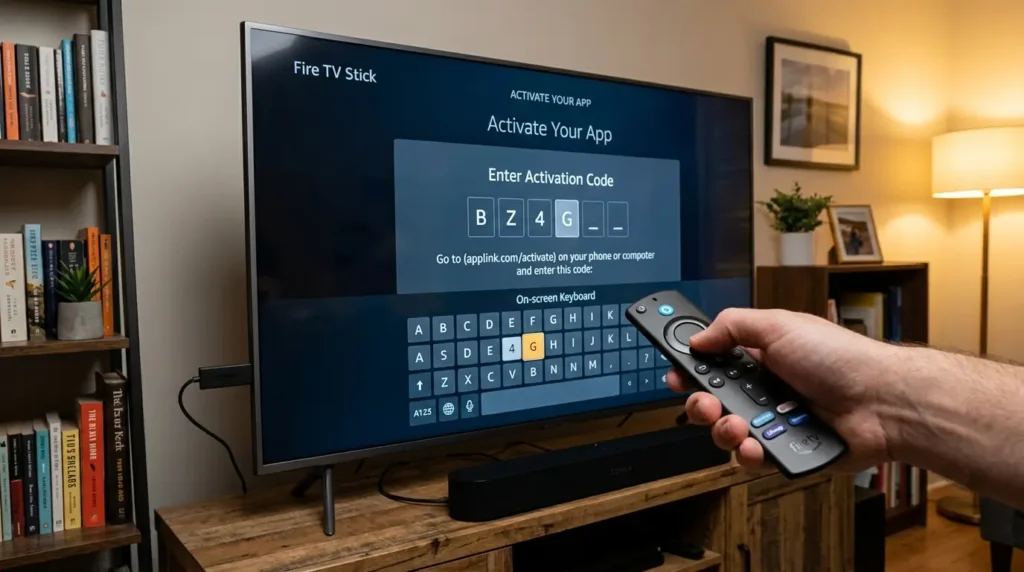
A major convenience feature of newer Firestick models and the Alexa Voice Remote is the ability to control your television directly — including power on/off, volume, and input switching — without a separate TV remote.
Setting Up TV Control on Your Firestick
- Go to Settings → Equipment Control (or Display & Sounds → TV & Equipment on some models)
- Select Manage Equipment → TV → Change TV
- Follow the on-screen prompts — Firestick will attempt to auto-detect your TV brand
- If auto-detection fails, select Enter Code Manually
Firestick TV Brand Codes (HDMI-CEC / Equipment Control)
These codes are used when your TV brand isn’t auto-detected:
| TV Brand | Firestick Control Code |
|---|---|
| Samsung | 0001, 0004, 0009 |
| LG | 0003, 0017, 0056 |
| Sony | 0002, 0011, 0024 |
| Panasonic | 0006, 0018, 0035 |
| Philips | 0008, 0022, 0047 |
| Toshiba | 0007, 0019, 0038 |
| Hisense | 0013, 0029, 0064 |
| TCL | 0015, 0031, 0072 |
| Sharp | 0010, 0026, 0051 |
| Vizio | 0005, 0016, 0042 |
Tip: If your exact TV model isn’t recognised by the first code, try additional codes in the list for your brand. Older TV models may require a broader code search.
HDMI-CEC: The Foundation of Firestick TV Control
Many modern TVs support HDMI-CEC (Consumer Electronics Control), which allows devices connected via HDMI to control each other. On Samsung TVs this is called Anynet+, on LG it’s SimpLink, and on Sony it’s BRAVIA Sync. Enabling HDMI-CEC in your TV’s settings often resolves TV control issues without needing manual code entry.
How to Use Firestick Codes for IPTV & Streaming Apps
If you’re using your Firestick for IPTV subscriptions, you’ll typically need to install a third-party IPTV player app and enter your subscription credentials. Here’s how codes and app IDs come into play.
Installing IPTV Apps via Downloader
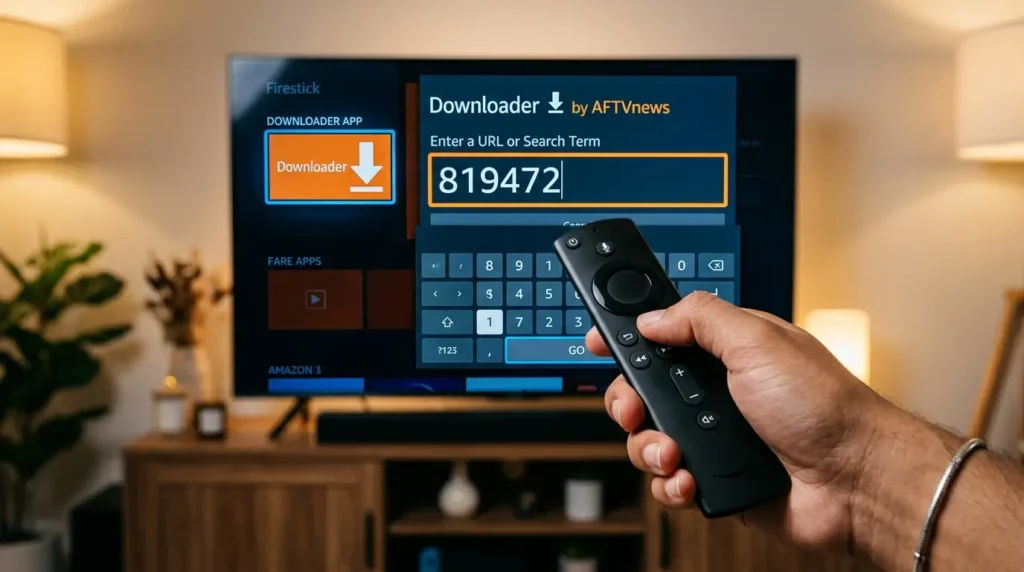
The Downloader app (available free in the Amazon Appstore) is the primary tool for sideloading IPTV apps onto a Firestick. Instead of a traditional numeric code, you enter a URL or a short Downloader code:
- Install Downloader from the Appstore
- Enable Apps from Unknown Sources in Developer Options (see above)
- Open Downloader and enter the APK download URL or short code for your IPTV app
- Follow the on-screen prompts to install
Popular IPTV players used with Firestick include IPTV Smarters Pro, TiviMate, GSE Smart IPTV, and Kodi. Each has a dedicated APK download URL provided by the developer.
M3U Playlist Codes
Once your IPTV app is installed, you’ll connect it to your subscription using an M3U URL — a web address provided by your IPTV service that contains your channel list, EPG data, and VOD library. This URL acts as your access code to the service and is unique to your account.
Xtream Codes / API Login
Many IPTV apps also support Xtream Codes login — a format that uses a server URL, username, and password rather than a full M3U URL. This is typically provided by your IPTV subscription service and entered directly into the app’s setup screen.
Firestick Troubleshooting Codes & Tips
When your Firestick isn’t performing as expected, several hidden diagnostics and reset sequences can help resolve issues.
Firestick Factory Reset (Button Combination)
If your Firestick is unresponsive or you want to wipe it completely:
- Hold the Back button and the Right directional button simultaneously for 10 seconds
- A reset confirmation screen will appear
- Confirm to proceed with the factory reset
Alternatively: Settings → My Fire TV → Reset to Factory Defaults
Firestick Force Restart
For a soft restart without losing data:
- Hold the Select button and the Play/Pause button simultaneously for 5 seconds
- The device will restart automatically
Clearing App Cache
For sluggish performance on specific apps:
Settings → Applications → Manage Installed Applications → [App Name] → Clear Cache
Firestick Diagnostic Mode
Accessing the About section under My Fire TV provides key diagnostic information including:
- Serial number
- Network connection status
- System version
- Storage and memory usage
This information is essential when contacting Amazon support or diagnosing performance issues.
ADB Commands for Advanced Troubleshooting
Users with ADB Debugging enabled can run commands from a connected computer to diagnose and fix issues:
adb shell dumpsys battery– Check battery/power statusadb shell pm list packages– List all installed appsadb uninstall [package name]– Remove a stubborn appadb shell input keyevent 3– Simulate home button press
Frequently Asked Questions About Firestick Codes
What are the secret codes for Firestick?
The most useful Firestick secret code is the developer options unlock sequence: navigate to Settings → My Fire TV → About and click the device name seven times. This reveals hidden developer settings including sideloading capabilities.
How do I find the remote code for my Firestick?
Universal remote codes for Firestick vary by remote brand and model. Common starting codes include 2434 (RCA), 4523 (GE/One For All), and 2082 (Philips). If these don’t work, use the auto-search function on your universal remote.
Can I use any universal remote with a Firestick?
Most modern universal remotes are compatible with Firestick using the appropriate pairing code. Full navigation support (including the Firestick menu and back buttons) depends on your remote’s compatibility level with Amazon’s Fire TV protocol.
What is the Downloader code for IPTV apps?
IPTV app Downloader codes are short numeric IDs assigned by the AFTVnews Downloader code system. Each IPTV app publisher registers their own code. Your IPTV service provider or the app developer’s official page will provide the specific code for their app.
How do I reset my Firestick without the remote?
If you’ve lost your remote, the Fire TV app (available on iOS and Android) can be used as a virtual remote. From there, navigate to Settings → My Fire TV → Reset to Factory Defaults. Alternatively, press and hold the Back and Right directional buttons on a compatible replacement remote for 10 seconds.
Do Firestick codes work on all Fire TV models?
Most codes and sequences covered in this guide work across Fire TV Stick Lite, Fire TV Stick (3rd and 4th gen), Fire TV Stick 4K, and Fire TV Stick 4K Max. Developer options, TV control codes, and reset sequences are consistent across all current models. Some universal remote codes may vary by device generation.
Conclusion
Firestick codes are your key to unlocking the full potential of one of the world’s most popular streaming devices. From universal remote pairing and TV control codes to developer options and IPTV setup, the right codes transform a simple streaming stick into a fully customised entertainment hub.
Whether you’re setting up a new device, troubleshooting an issue, or exploring advanced features for the first time, this guide gives you everything you need to take control of your Firestick experience in 2026.
Ready to get more from your Firestick? Start with the developer options unlock today — it takes less than a minute and opens up a whole new world of streaming possibilities.
Если вы намерены отдать всего единственный день в этом волшебном городе, советую наперёд сформировать пеший маршрут по улочкам Венеции на 1 день, чтобы не упустить шанс посетить культовые места. Например, маршрут по Венеции на 1 день с подробной картой облегчит понять маршрут и не заблудиться в запутанных сетях пешеходных путей. Осмотр Венеции за день — дело непростое, но абсолютно реальная, если ориентироваться, что посетить в Венеции за 1 день, и каков тариф на гондольная прогулка — стоимость гондолы бывает разной, так что на расходы лучше смотреть заранее.
Путешественникам, кто желает захватить и соседние города, рекомендую поместить в маршрут красавицу Флоренцию: маршрут по Флоренции на 1 день обеспечит осмотреть основные музеи и аутлет-центры, а вдобавок открыть для себя, где недорого поесть во Флоренции. Если планируется грандиозных авантюр, можно запланировать путешествие по Доломитам — доломитовые Альпы маршрут на машине и как попасть туда широко обсуждаются на туристических форумах. Подробный маршрут и практичные советы доступны здесь [url=https://holidaygid-italy.ru]флоренция что посмотреть за 1 день[/url] .