
Table of Contents
If you’ve been hunting for a lightweight, free, and flexible IPTV player for your Smart TV or streaming device — SS IPTV is likely already on your radar. Also written as SSIPTV, this app has quietly become one of the most popular IPTV players among users in Europe, South America, and the Commonwealth of Independent States.
But popularity doesn’t always mean easy setup. Between device-specific installation methods, playlist uploads, and codec quirks, many users hit a wall before they even stream their first channel.
This guide cuts through the noise. Whether you’re installing SS IPTV on an LG Smart TV, a Samsung, or a FireStick — you’ll find clear, step-by-step instructions here, plus tips on playlists, features, and fixing the most common problems.
What Is SS IPTV?
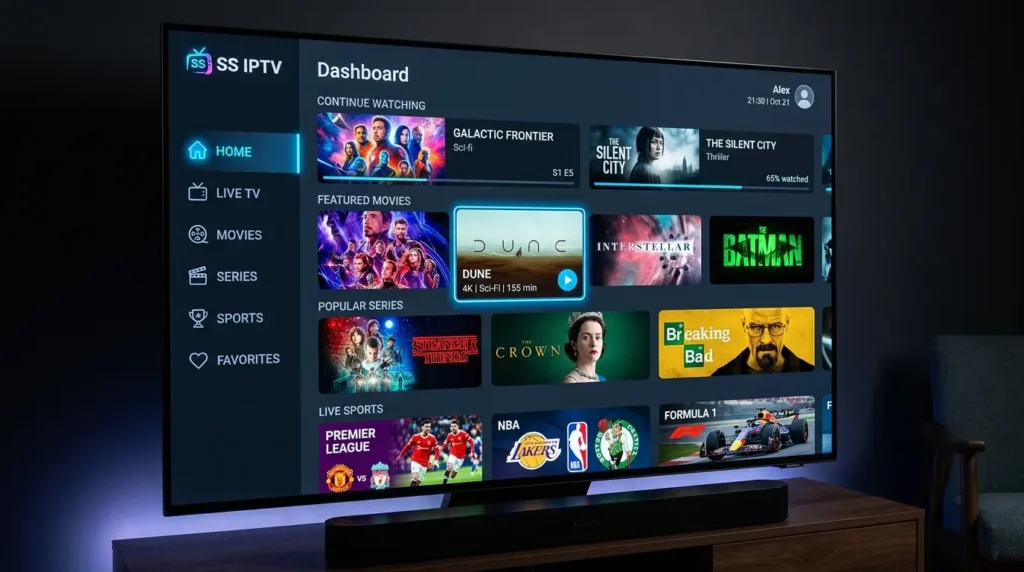
SS IPTV is a free multi-purpose player that lets you watch videos on your Smart TV or FireStick through the internet or a local network. It supports hundreds of IPTV operators and allows you to use your own custom playlists.
Here’s the most important thing to understand before you dive in: SS IPTV is purely an IPTV player app — it does not provide a streaming service or IPTV subscription itself. You need to purchase a plan from an IPTV provider, obtain an M3U link, and add it to SS IPTV to start streaming content. IPTV Helps
Think of it like VLC for your television. The app plays whatever you feed it — your content, your playlists, your rules. The app itself is completely free, completely legal, and doesn’t host or promote any content. What you stream with it is your responsibility.
SS IPTV supports playlist formats including M3U, XSPF, ASX, and PLS, as well as time markers in the TV Guide for automatically switching channels at set times.
Supported Devices
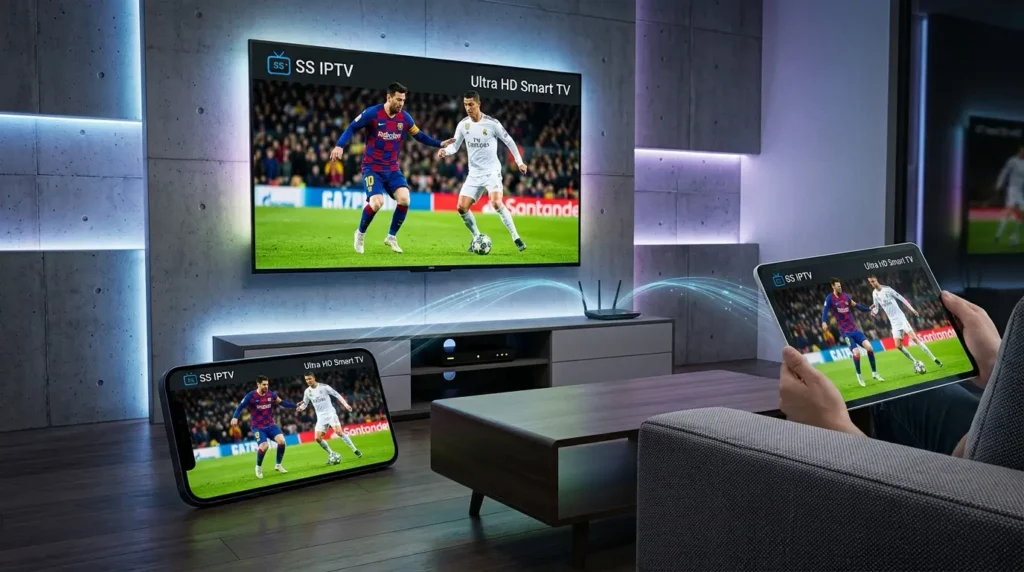
One of SSIPTV’s biggest strengths is its broad device support. The app works on LG, Samsung, Philips, and Sony Smart TVs, Android TV boxes, Android smartphones and tablets, and Amazon FireStick devices.
Here’s a quick breakdown by platform:
- LG Smart TV — Available directly from the official LG Content Store (LG Smart World) in most countries.
- Samsung Smart TV — Not available in the Samsung Smart Hub. Installation requires a USB stick method.
- Philips Smart TV — Accessible by entering
app.ss-iptv.comdirectly in the TV’s browser. - Sony Smart TV — Currently in beta on Sony Smart TVs, so some features may not work as expected. Compatible with 2013 models and newer.
- Amazon FireStick — Requires sideloading via the Downloader app, since SS IPTV is not on the Amazon App Store.
- Android TV / Box — Can be sideloaded via APK or found on Google Play depending on your region.
How to Install SS IPTV — Step by Step
On LG Smart TV
- Open the App Store (LG Content Store) on your LG Smart TV.
- Search for SS IPTV and select it from the results.
- Hit Install and wait for the download to complete.
- Once installed, launch the app and proceed to add your playlist.
LG is the easiest route — no sideloading, no USB, no workarounds needed.
On Samsung Smart TV (USB Method)
Samsung’s Smart Hub does not carry SS IPTV, so the app must be run via a USB stick inserted into the TV.
- Download the SS IPTV app file from the official SS IPTV website on your PC.
- Unzip the contents to the root folder of a USB flash drive (not inside any subfolder — the path matters).
- Insert the USB stick into one of your Samsung TV’s USB ports.
- The app should launch automatically from the USB.
On Amazon FireStick
SS IPTV is not available in the Amazon App Store, so you must sideload it using the Downloader app. Fire Stick Tricks
- On your FireStick home screen, go to Find > Search and search for Downloader.
- Install the Downloader app.
- In your FireStick Settings, go to My Fire TV > Developer Options and enable Apps from Unknown Sources.
- Open Downloader, tap the URL field, and enter the SS IPTV APK download link from the official SS IPTV website.
- Once downloaded, tap Install when prompted.
- After installation, you can delete the APK file to free up storage.
On Android TV / Android Box
Enable installation from unknown sources in your device’s security settings, then download the SS IPTV APK from the official site and install it directly.
How to Add a Playlist to SS IPTV
This is where the magic happens. SS IPTV supports two methods for loading your IPTV content.
Method 1: Upload by Link (Recommended)
Open the SS IPTV app and tap the Settings icon at the top right corner. Navigate to Content > External Playlists and tap Add. Enter your playlist title and the M3U link from your IPTV provider, then press Save.
Your playlist will appear on the main screen as a separate tile and can be accessed immediately.
Method 2: Upload with a Non-Permanent Code
Go to the General section of the app’s settings and press the Get Code button. This non-permanent code is valid for 24 hours or until a new code is generated. Enter the code at ss-iptv.com/users/playlist on your computer and upload your playlist file from there. IPTV Support
This method is useful when you have a file rather than a direct M3U URL.
Note: Each user can have any number of external playlists, but only one internal playlist for live channels and one for VOD streams.
Key Features of SS IPTV
SS IPTV isn’t just a bare-bones player. Here’s what makes it stand out:
Multi-Playlist Support — Load and switch between multiple M3U playlists without removing and re-adding them each time.
Parental Controls — SS IPTV includes a PIN-based parental control system to restrict access to specific channels. The default PIN is 12345, and it can be changed in the settings.
Customizable Interface — Rearrange channels, add custom logos, and tailor the layout to match your preferences.
TV Guide with Time Markers — Set time-based rules so the app automatically switches to a specific channel at a scheduled time.
Multi-Language Support — The app supports over 15 interface languages, with English set as the default.
UDP Proxy Support — SSIPTV includes a built-in UDP proxy feature that allows streaming of UDP/RTP streams over HTTP connections — useful for network setups that don’t natively support those protocols.
Free — No Subscription — The app itself carries no cost and no hidden fees. You only pay for your IPTV content subscription, not the player.
Troubleshooting Common SS IPTV Issues
Even with a solid app, things can go wrong. Here are the most frequent issues and how to fix them:
Playlist not loading or showing an error: If your content isn’t loading, first check that the M3U URL works in another player like VLC. Then verify your internet speed meets the minimum requirements. An error stating the URL is unreachable usually means the link has expired or the host no longer exists — contact your IPTV provider for a fresh link.
Black or blank screen on launch: Ensure you have a reliable internet connection. Try accessing https://ss-iptv.com/ via your TV’s browser. If that fails, try entering a custom DNS address in your TV’s network settings.
Buffering or stuttering streams: Check your internet connection speed. For HD streams, a stable connection of at least 10 Mbps is recommended. Restarting your router often resolves temporary buffering issues.
Codec not supported: If a specific channel plays audio but no video (or a black screen), the video codec may not be supported by your TV’s hardware. Check your TV’s manual for supported codecs and contact the SS IPTV support team with your TV model details.
Forgot your PIN: You can perform a soft reset to restore the default PIN, or email the SS-IPTV team with a photo of your SS-IPTV Settings Information page.
Frequently Asked Questions
Is SS IPTV free? Yes. SS-IPTV is completely free to install and use — there are no subscription fees, no upsells, and no locked features requiring payment. You only pay for the IPTV service that provides the content, not the player itself.
Is SS IPTV legal? The app itself is legal. SS-IPTV doesn’t host content, doesn’t promote piracy, and functions purely as a media player — legally equivalent to something like VLC. Whether your streams are legal depends on the content provider you subscribe to.
Can I use SS IPTV on multiple devices? Yes. SS-IPTV works across LG, Samsung, Philips, and Sony Smart TVs, as well as Android TV boxes, Android devices, and FireStick. IPTV Helps Each device requires its own installation, but you can sync playlists across them.
Does SS IPTV work with any M3U playlist? It supports the most widely used playlist formats. If a playlist works in VLC, it will almost certainly work in SS-IPTV.
Do I need a VPN with SS IPTV? A VPN is not required for the app to function. However, many users opt to use a VPN alongside SS-IPTV to protect their privacy and avoid ISP throttling — especially when streaming from third-party content sources.
Conclusion
SS IPTV is one of the most capable and accessible IPTV players available — and the fact that it’s completely free makes it an easy recommendation for anyone setting up an IPTV stream at home. Whether you’re on an LG Smart TV, a FireStick, or an Android box, the setup process is straightforward once you know the right steps for your device.
The key takeaway: SS-IPTV is the player, not the provider. Get a reliable IPTV subscription with a working M3U link, follow the installation steps above for your device, and you’ll be streaming in minutes.
Ready to get started? Head to the official SS-IPTV website at ss-iptv.com to download the latest version for your device.